 Inter Mission
14 personlige Links
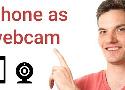
In this step-by-step tutorial, learn how to use your iPhone or Android phone as a webcam for your Windows, Mac, or Linux PC or laptop.
You can even use your iPad.
For this to work, you need to install the Iriun app on your PC from www.iriun.com and on your mobile device via the App Store or the PlayStore by searching for Iriun.
On Android devices:
Iriun Webcam supports USB connections too. Connect the cable and follow instructions on mobile. (You need to enable USB debugging)
👍


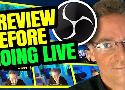
Multiview gives you a visual preview of eight screens, not just one which is extremely helpful. Just click view at the top left and multiview (windowed). This selection will show a popup box showing you the eight preview windows. Make sure to unclick "Studio Mode" before making your selections. You can resize the popup screen with little effort. When you click each window, you'll transition right to the live screen. This function is fantastic.
Ved workshoppen for Metodistkirkens præster blev ½ time brugt på en præsentation af nogle praktiske løsninger fra Sound Tek.
Der blev blandt andet præsenteret en 'Plug N Play' løsning til at streame de kirkelige handlinger via Hjemmeside, Facebook eller Youtube.
Personligt fandt jeg en sådan Plug N Play løsning for usmidig - og dyrt.
Men som Total Løsning er de interessante og kunne præsentere nogle fornuftige produkter.
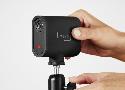
Mevo creates the world’s only live streaming cameras and dedicated iOS and Android Apps, enabling you to stream and record your live events in just a few taps. Our newest camera, the Mevo Start, empowers content creators to stream 1080p to multiple platforms like Youtube and Facebook Live.

if you're interested in making your iPhone or your Droid phone a wireless webcam, then you must install the NDI Phone App. Scott will help you connect this technology for both phone types. This video will explain how to use your phone as a webcam for both Droid and iPhone.h

Scott explains how to set up your phone and OBS Studio to use the NDI plugin. This tutorial will show you how to accomplish three primary tasks with your OBS installation.
-
The first part will show you how to find and install the OBS studio Newtek NDI plugin. All you have to do is go to the Blue OBS website and search for the NDI Plugin. Installation is very straight forward. From a PC user's perspective, always download the exe file. You will also be shown an installation warning you of overwriting files on OBS. Don't worry about the prompt and press forward. Nothing terrible will happen to your streaming software.
-
The second part of this NDI installation is downloading the phone app for both iPhone and Droid. The Newtek NDICam app is a straightforward installation, and it only costs $10. The software works perfectly. There are some warning flags with Droid, though. People say the software sucks, and so I suggest you install and work with the IP Webcam. The app is 100% free, and everyone in the comments loves the app. You can find the link here.
https://play.google.com/store/apps/de...
This link will take you to an OBS studio install video.
- The third and final part of this tutorial explains the settings for NDICam and OBS. Scott explains what the various parameters are on your iPhone and how to create a connection on OBS. For the most part, the setup is very easy.
After downloading you're taken to this page for more info.