 Inter Mission
14 personlige Links
Gratis, Open Source-software til videooptagelse og live streaming.
Hent og start streaming hurtigt og nemt på Windows, Mac eller Linux.
OBS (Open Broadcaster Software) is free and open source software for video recording and live streaming. Stream to Twitch, YouTube and many other providers or record your own videos with high quality H264


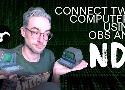
Here's how to connect two computers using OBS Studio, so you can play your game on one, and stream it on another, saving you precious CPU/GPU power.
The OBS Studio NDI Plugin.
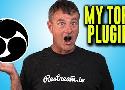
My Top 5 OBS Plugins you need to have!
Take your transitions, visuals, and ease of your streams to the next level. I show you how to intall them and use them for your live streams.
Learn how to use OBS Studio. In this series of OBS tutorials I take you through the initial set up all the way through advanced features so you can make your live streams look awesome!
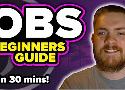
This is the Ultimate Beginners Guide for OBS Studio 2020. Learn everything about OBS Studio in just 30 minutes! This tutorial covers basic layout, building s...
In this step-by-step tutorial, learn what the various OBS record settings mean and what to select to ensure that you record the best quality videos.
In this step-by-step tutorial, learn how to record your computer screen for free using a free and open-source tool called OBS or Open Broadcaster Software.
Sysinternals ZoomIt kan benyttes i OBS Studio
Der er dog en lille irriterende bug, som Matt Pilz her har en workaround til.
In this step-by-step tutorial video, learn how to highlight your mouse cursor to make it easier for your audience to follow your mouse movements and clicks. The two options that I feature in this video are entirely free. Highlighting your mouse pointer is especially valuable during presentations, demos, remote teaching, and screen recording. Follow along to find out how to make this work on Windows 7, 8, and 10. At the end, I also show you how to turn on mouse highlighting within OBS or Open Broadcaster Software.
In this step-by-step tutorial video, learn how to zoom in and then zoom out on a certain area in your screen recording. This is especially helpful for instructional or tutorial videos. I personally use this in my tutorial videos on YouTube.
NB ! En anden mulighed: ZoomIt
Installer denne app fra Windows Sysinternals - og du kan zoome mens du optager skærmen - eller præsenterer skærmen.
Multiview gives you a visual preview of eight screens, not just one which is extremely helpful. Just click view at the top left and multiview (windowed). This selection will show a popup box showing you the eight preview windows. Make sure to unclick "Studio Mode" before making your selections. You can resize the popup screen with little effort. When you click each window, you'll transition right to the live screen. This function is fantastic.
Her er en instruktions video - på dansk!
Den fortæller om opsætning af OBS Studio til optagelse af skærm.
Videoen er produceret til Københavns Professionshøjskole hvor man benytter online video tjenesten DreamBroker.
Men med OBS Studio gemmes optagelsen på egen harddisk - og kan evt. redigeres inden offentliggørelse.
This video explains how to use three cameras in Camtasia. Scott explains how you can use OBS Studio Virtual Cam combined with Camtasia to edit videos. This Camtasia trick will allow you to product video faster because you will no longer have to upload and edit multiple video tracks. This tip will save you tons of time because you will have the power to switch cameras as you create you video tutorial.
if you're interested in making your iPhone or your Droid phone a wireless webcam, then you must install the NDI Phone App. Scott will help you connect this technology for both phone types. This video will explain how to use your phone as a webcam for both Droid and iPhone.h
Scott Fichter viser hvordan man kan benytte tastatur genveje (Hot Keys) til at skifte mellem forskellige scener og effekter.
Han viser også hvordan en scene kan være nested som et subset af resourcer i en anden scene.
Scott Fichter fortæller hvordan man laver en intro countdown.
- countdown
- baggrunds musik
- valg af skrifttype
- genbrug af tekst
- scripts
- timer
Flere fede tricks fra Nick Nimmin.
- skift af scenesamling
- viser hvordan webcamera opsættes
- brug af forskellige scener
- forskellig grafik
- rullende tekst
- fade in / fade out
- transition
- forskellige zoom niveau som scener
- Vis chat på skærmen fra youtube / facebook
- split skærm - med flyttet kamerafokus
- Studio mode
Igen meget reklame præget - men der er guldkorn imellem.
Caleb fra Blackbar fortæller om hans 'take' på optimering af livestreaming hjemmefra. Med fokus på kirke brug.
Masser af tips.
Hold øje med Blackbar på youtube !
Her er en introduktion til at livestreame fra kirken. Det handler meget om teknikken og det går stærkt. Men giver en række gode råd til, hvad man skal være opmærksom på.
Og så er det med fokus på kirke brug.
Men også meget fokus på alt det tekniske
Her giver én af de store youtuberer nogle tricks til at få 'strømmen' til at se pro ud.
Nick Nimmin lever af at producere indslag til youtube - Hans reklame-mands stil, skal man ikke nødvendigvis kopiere; men man kan stadig fravriste ham nogle tips.
- How to make Intros
- Lower thirds - Præsentation, salmetekst etc.
- Graphics - knapper f.eks. til SoMe links, eller kollekt...
- End stream - afslutning med f.eks. kredentials
Han benytter i øvrigt et Logitech C922 webcamera (ca. 1100,- kr) til sine optagelser.